Quick start
What's there, what to try, and how to use it. Steps 1–4 and 8 work for anyone; 5–7 are for MakerLAB staff.
Step 1
Open the site
Go to makerlab-ai.vercel.app on a laptop or phone. Every tool in the lab is there: search, filter by category or status, or press ⌘K (Ctrl K) to jump to one. No account needed.
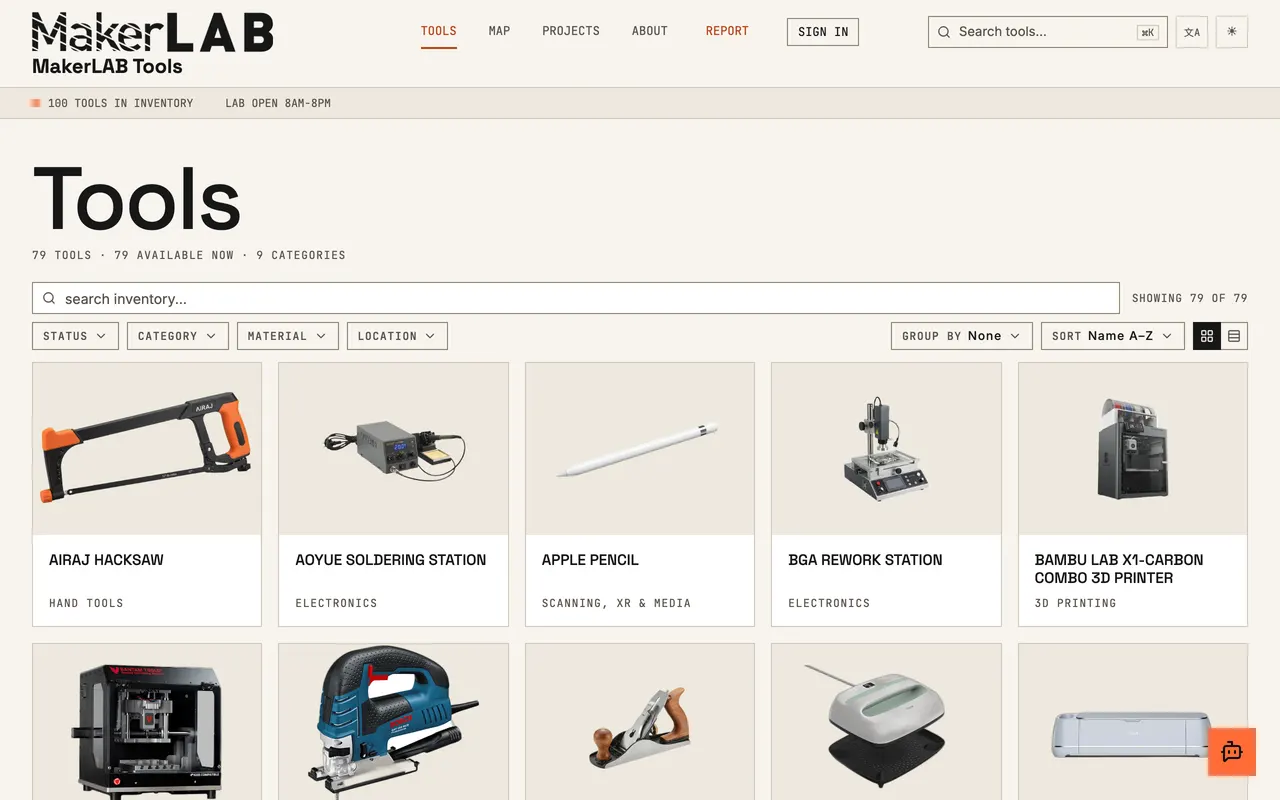
Live site, 2026-09-28 Step 2
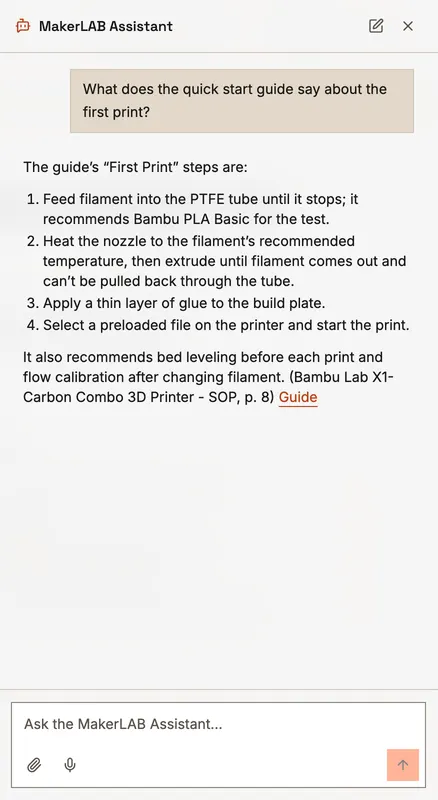
Ask the assistant on a tool page
Open the Bambu Lab X1-Carbon and press the orange button at the bottom right. Ask “How do I start a print with the AMS?”, or “What does the quick start guide say about the first print?” (shown here). The assistant knows which machine you're looking at, so you don't have to name it.
Live site, 2026-09-28 Step 3
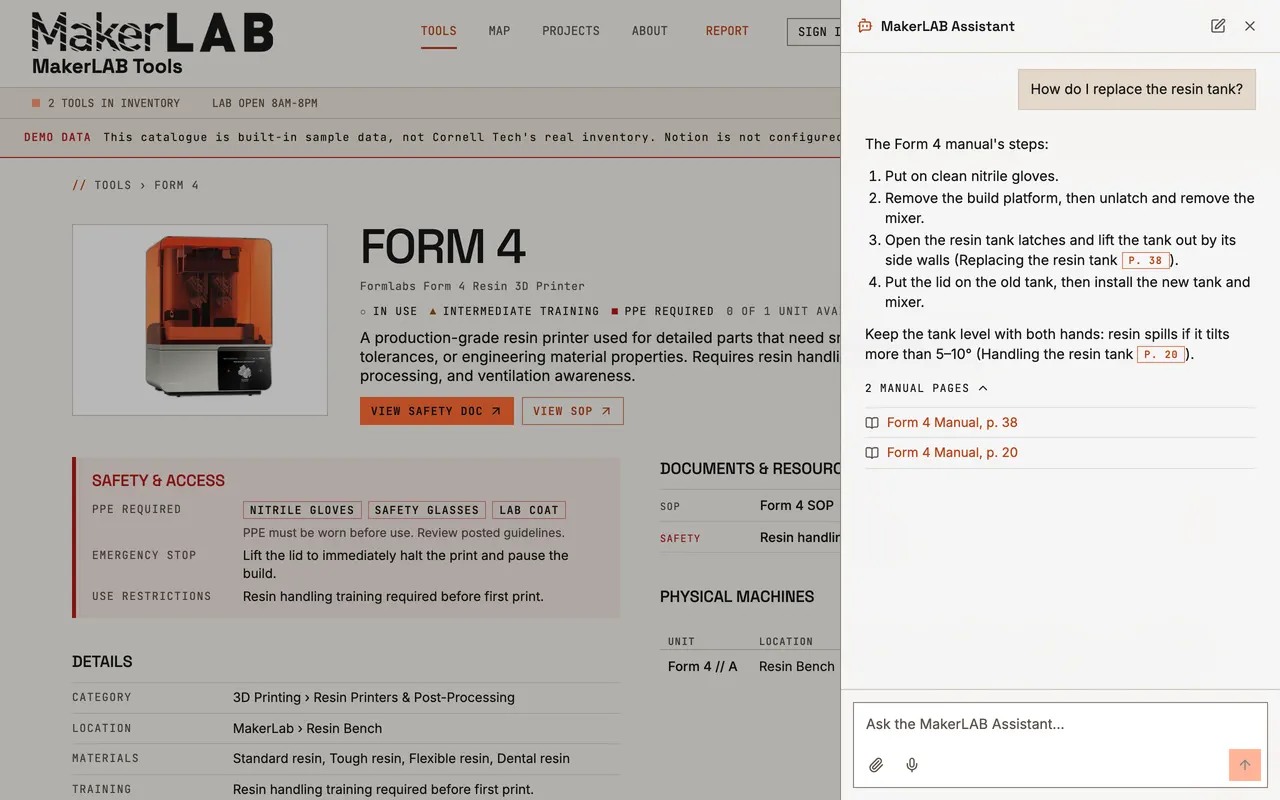
Follow a manual citation
When an answer comes from a manual, it shows page references like “p. 38” and lists the pages under the answer. Tap one to open the manual at that page and check it yourself.
Demo data Step 4
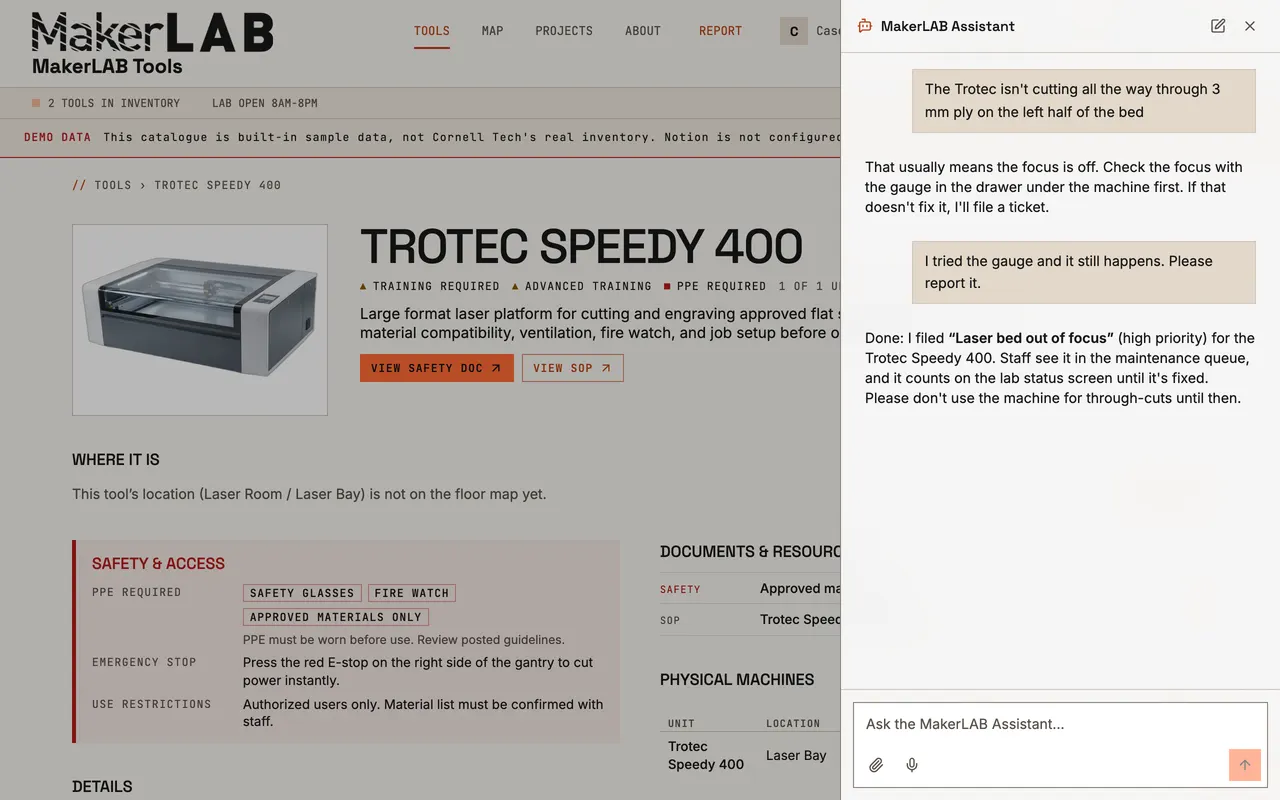
Report a problem
Tell the assistant what's wrong, or press Report in the header. It suggests the obvious checks first, then files a ticket for the right machine. Sign in so staff know who reported it.
Demo data Step 5Staff
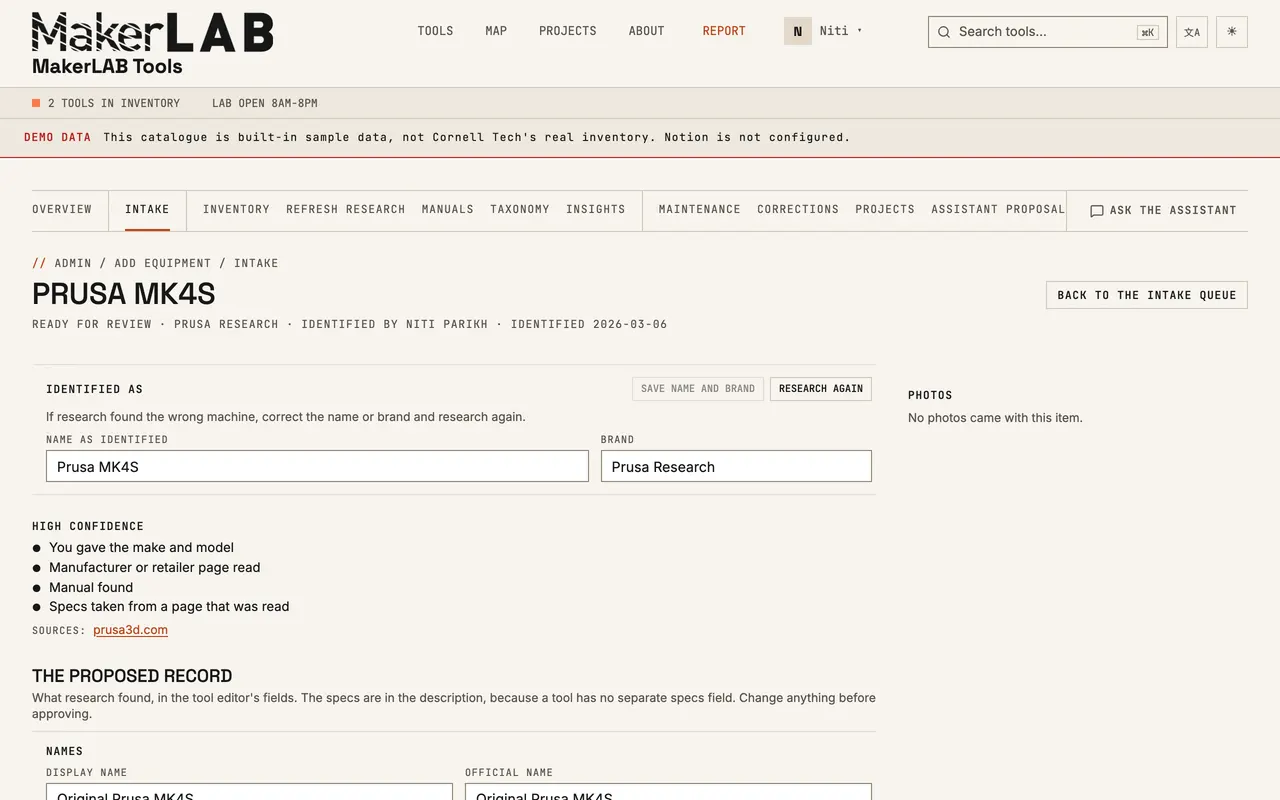
Add a tool from a photo
Sign in with your Cornell Google account and open Admin → Intake. Press Ask the assistant, attach a photo of the machine (or an inventory list) and say “add this”. Check the name it identified, then press Research selected. Research runs in the background; when the item is ready, open it on Intake, review the proposed record and approve it.
Demo data Step 6Staff
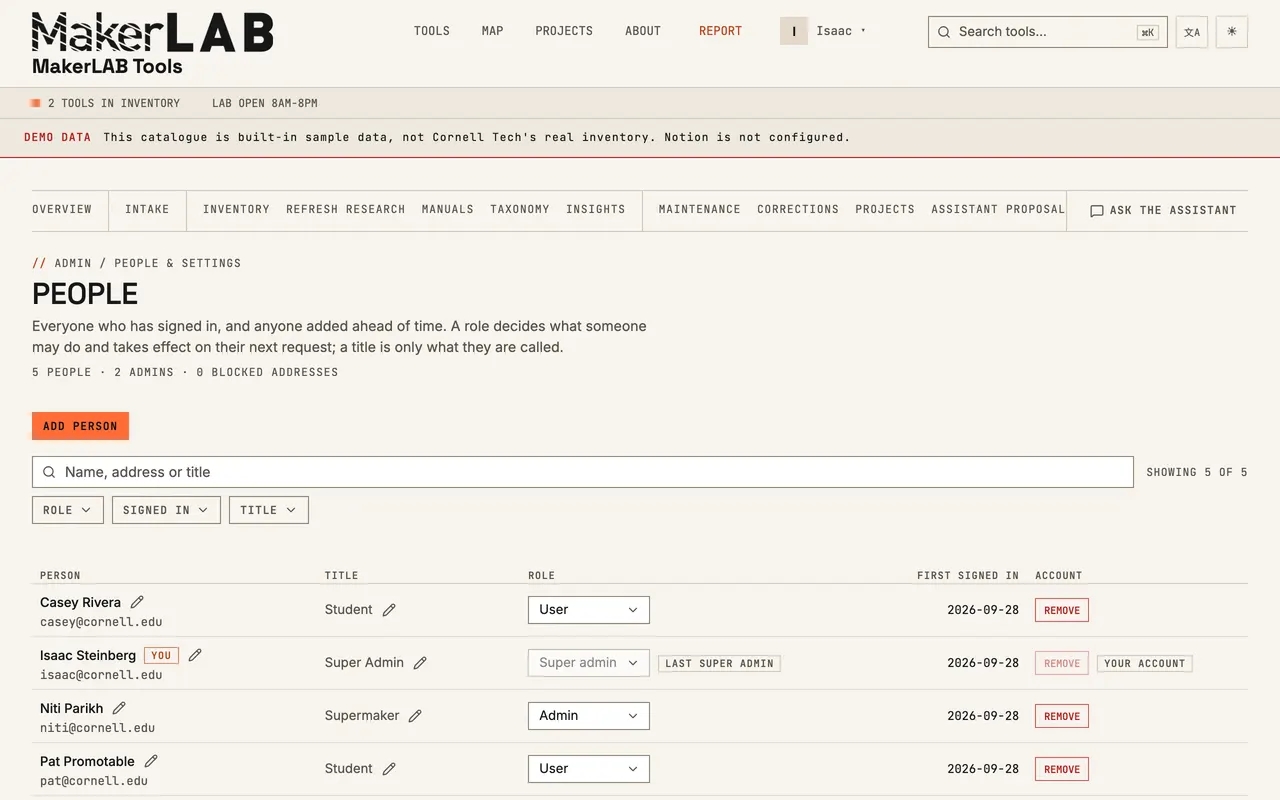
Give people roles and titles
Admin → People lists everyone who has signed in. A super admin sets each person's role (User, Admin, Super admin) and a title such as Director or SuperMaker. Roles decide what they can do; titles are what others see.
Demo data Step 7Staff
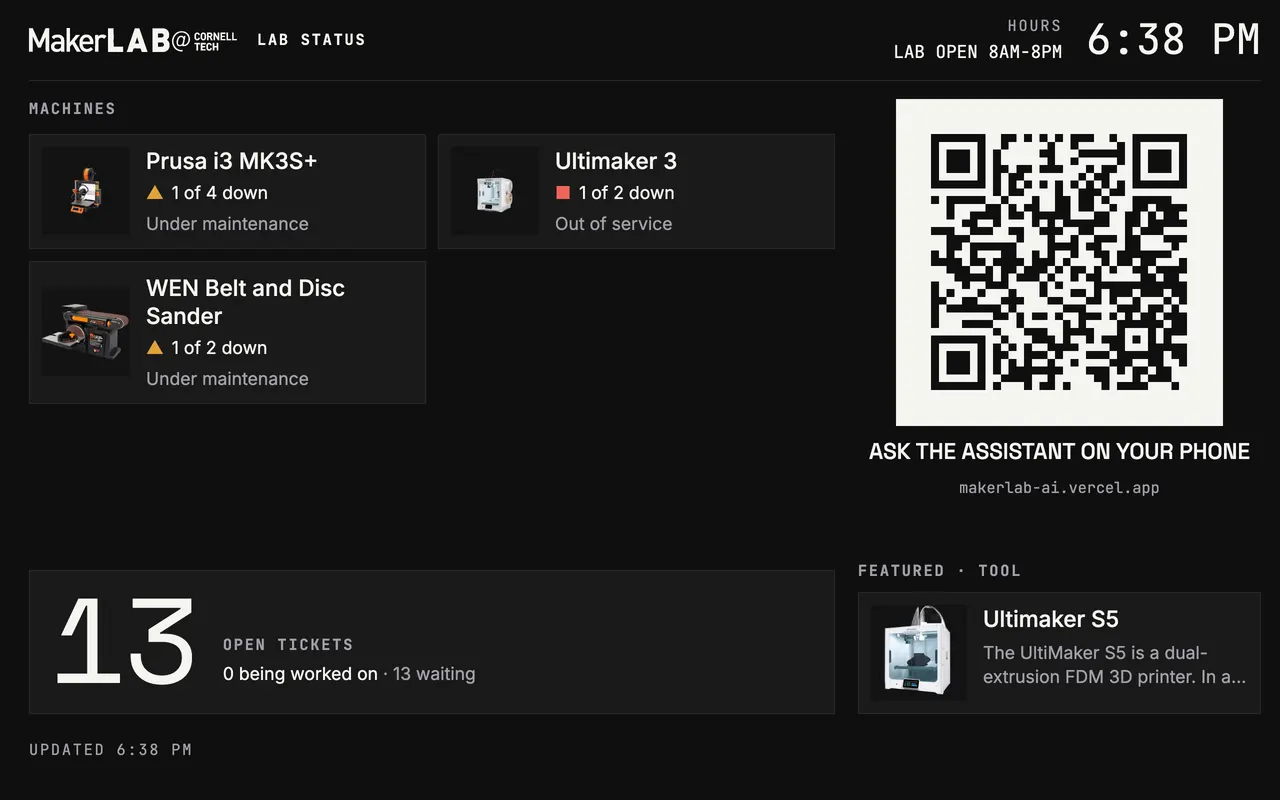
Set up the lab screen
Open /kiosk on the TV's browser and make it full-screen. On an iPad: open it in Safari, Add to Home Screen, turn on Guided Access and set Auto-Lock to Never. It needs no sign-in and refreshes on its own.
Live site, 2026-09-28 Step 8
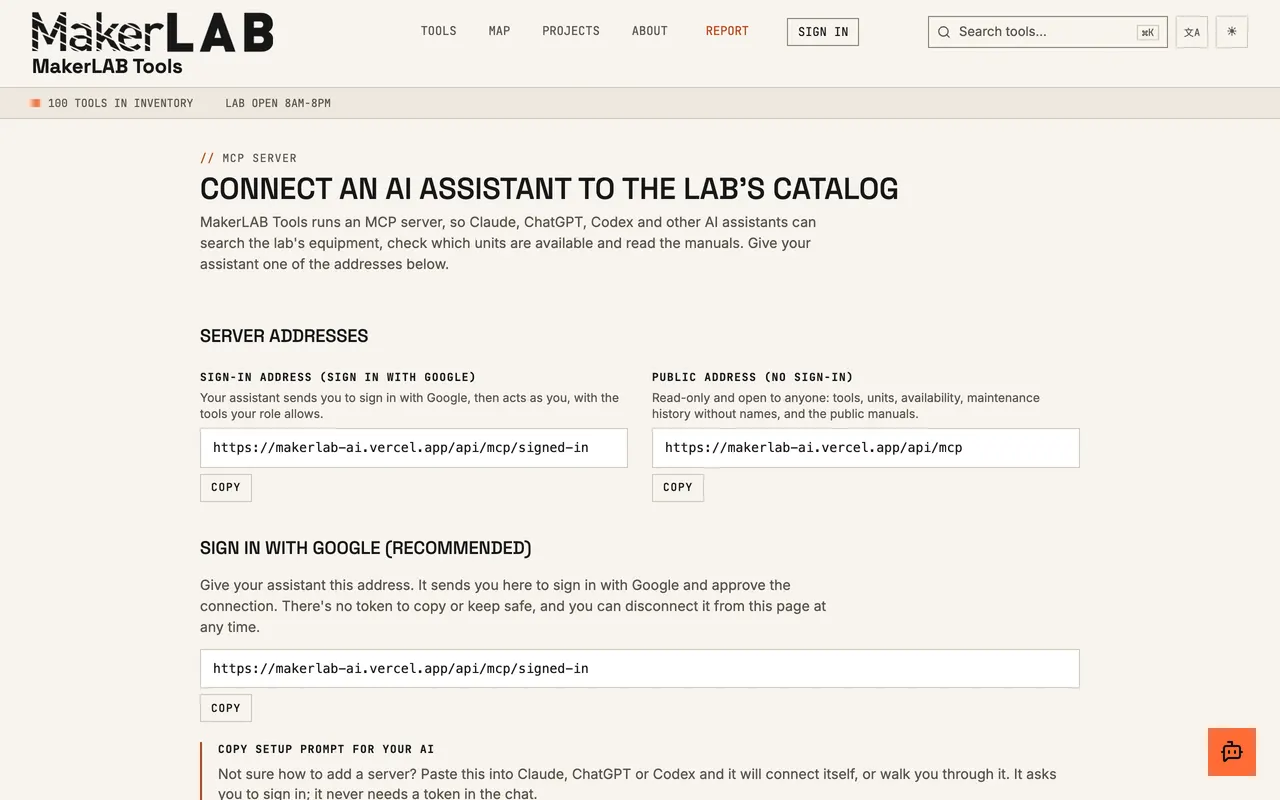
Connect Claude or ChatGPT
Open /mcp for the address to add to your assistant as an MCP server. It can browse the catalog straight away; sign in with Google when it asks, and it can file reports as you.
Live site, 2026-09-28


Things to try
- Ask the X1-Carbon's assistant how to start your first print
- Ask “What can cut 3 mm acrylic?” from the home page
- Switch the language menu to 日本語 or Español and ask again
- Open the lab status screen and scan its QR code with your phone
- Browse the projects gallery and open a tool someone used
- Try the MCP server's read-only tools on the /mcp page
- Press ⌘K anywhere and type a machine's name